
What Excel Is, How to Use It, and Detailed Instructions for Excel Formulas Microsoft Excel: What is it? Microsoft Excel is a spreadsheet program that was developed by Microsoft and is part of the Microsoft Office suite. It enables users to use a spreadsheet system to arrange, format, and compute data using formulas. Because of its robust data manipulation and visualisation tools, Excel is used extensively in a wide range of industries, including finance, accounting, data analysis, administration, and more.
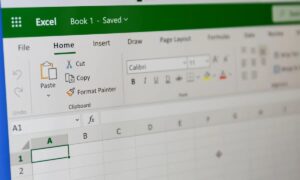
Excel’s salient features include
- Spreadsheets: Workbooks are Excel files that include worksheets composed of numbered rows and lettered columns.
- Cells: A cell is where a row and a column intersect (e.g., A1). Data such as text, numbers, or formulas can be stored in each cell.
- Sorting, filtering, charts, pivot tables, and conditional formatting are examples of data analysis tools.
- Functions and Formulas: Excel has built-in functions for intricate operations as well as formulas for calculations.
How to Use Excel: An Introduction
-
Overview of the Interface:
- Excel will appear when you open it.
- Tabs such as Home, Insert, Formulas, Data, and others are located on the ribbon.
- Worksheet Area: The primary cell grid.
- The formula bar is where you can view or enter formulas or cell content.
- Name Box: Displays the chosen cell’s name or address.
-
Simple Excel Tasks:
Data Entry:
- To enter text or numbers, click a cell and begin typing.
- To move right, press Tab; to move down, press Enter.
Cell Formatting:
- Data can be formatted using the Home tab’s bold, italics, font size, cell colour, and number format (currency, percentage, etc.).
Choose your data range before creating tables and charts.
- Select the Insert tab.
- Select from a variety of chart types, including pie, bars, columns, and lines.
Filtering and Sorting:
- Choose your information.
- To arrange or filter particular data, use the Sort & Filter option located under the Data tab.
- To save and share your file, save it in the.xlsx format.
- For teamwork, share via email or OneDrive integration.

Excel Formulas
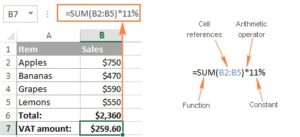
Microsoft Excel formulas begin with the equal sign =. They use built-in functions, operators, cell references, and values to carry out computations.
-
Basic Arithmetic Formulas:
| Operation | Formula Example | Description |
| Addition | =A1 + B1 | Adds values in A1 and B1 |
| Subtraction | =A1 – B1 | Subtracts B1 from A1 |
| Multiplication | =A1 * B1 | Multiplies A1 and B1 |
| Division | =A1 / B1 | Divides A1 by B1 |
- Commonly Used Functions:
| Function | Syntax | Description |
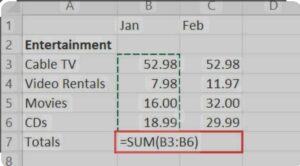
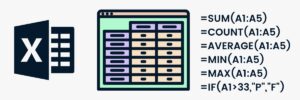
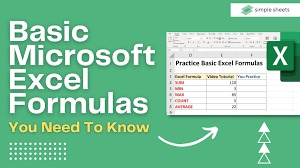
| SUM | =SUM(A1:A5) | Adds all numbers in the range A1 to A5 |
| AVERAGE | =AVERAGE(B1:B5) | Finds the average of the range |
| MAX | =MAX(C1:C5) | Returns the highest value |
| MIN | =MIN(C1:C5) | Returns the lowest value |
| COUNT | =COUNT(D1:D10) | Counts numeric values in the range |
| COUNTA | =COUNTA(D1:D10) | Counts all non-empty cells |
-
Logical Formulas:
| Function | Syntax | Description |
| IF | =IF(A1>10, “Yes”, “No”) | Checks a condition and returns a result |
| AND | =AND(A1>0, B1<100) | Returns TRUE if all conditions are TRUE |
| OR | =OR(A1>0, B1<100) | Returns TRUE if at least one condition is TRUE |
| IFERROR | =IFERROR(A1/B1, “Error”) | Returns “Error” if division fails |
-
Lookup & Reference Formulas:
| Function | Syntax | Description |
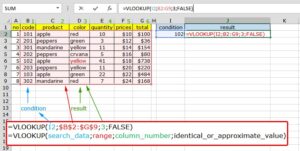
| VLOOKUP | =VLOOKUP(lookup_value, table_array, col_index, [range_lookup]) | Searches for a value vertically |
| HLOOKUP | =HLOOKUP(lookup_value, table_array, row_index, [range_lookup]) | Searches for a value horizontally |
| INDEX | =INDEX(array, row_num, [column_num]) | Returns a value at a specific position |
| MATCH | =MATCH(lookup_value, lookup_array, [match_type]) | Returns the position of a value |
-
Date & Time Formulas:
| Function | Syntax | Description |
| TODAY | =TODAY() | Returns the current date |
| NOW | =NOW() | Returns the current date and time |
| DATEDIF | =DATEDIF(A1, B1, “Y”) | Calculates difference between two dates in years, months, or days |

Tips for Effective Excel Use
- Avoid entering values straight into formulas by using cell references.
- Formulas can be applied to neighbouring cells using AutoFill by dragging the fill handle.
- In order to maintain header visibility while scrolling, freeze panes.
- To draw attention to important data, use Conditional Formatting.
- Make pivot tables to summarise sizable datasets.
In conclusion,
Microsoft Excel is an effective tool for data management and analysis. Excel offers countless opportunities, regardless of your level of experience—from a novice learning how to enter data and create charts to an expert creating intricate formulas. You can increase your productivity, make wise decisions, and effectively visualise your data by becoming proficient with its formulas and features.
ALSO READ THIS: Student Visa:13 Tried-and-True Methods for Quick Visa Approval